Excel Column Charts
Column Charts
Column charts show the data as vertical bars.

Column charts are suited for representing values of qualitative (categorical) data.
Note: You can read more qualitative (categorical) data at Statistics Data Types.
Excel has three different types of column charts:
- Clustered column(
 )
) - Stacked column(
 )
) - 100% Stacked column(
 )
)
Clustered Column Chart
Clustered Column charts are used when the value of data is important but the order is not.
Example With One Data Column
We want to find the number of generation 1 Pokemons with types "Grass", "Fire", "Water" and "Bug".
You can copy the values to follow along:

- Select the range
A1:B5
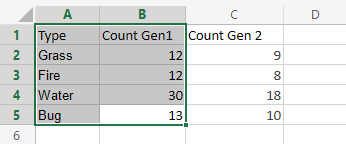
- Click on the insert menu, then click on the column menu (
 ) and choose Clustered Column () from the drop-down menu
Note: This menu is accessed by expanding the ribbon.
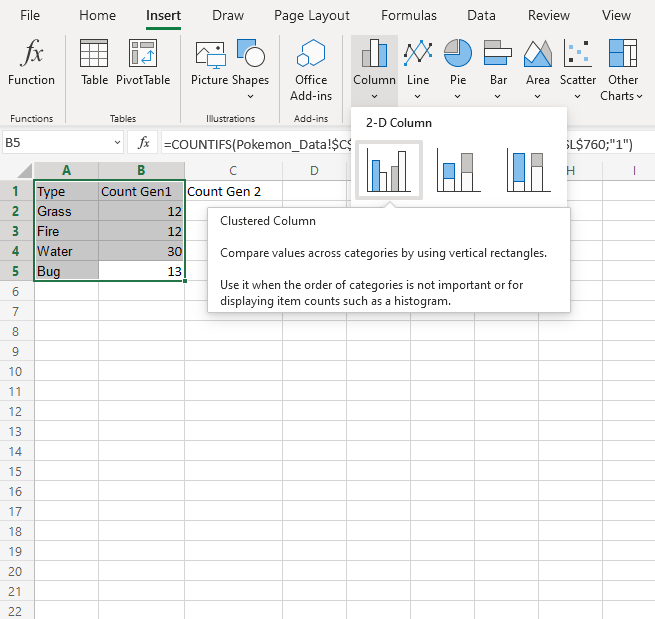
Nicely Done! Following the steps above will give you the chart below.
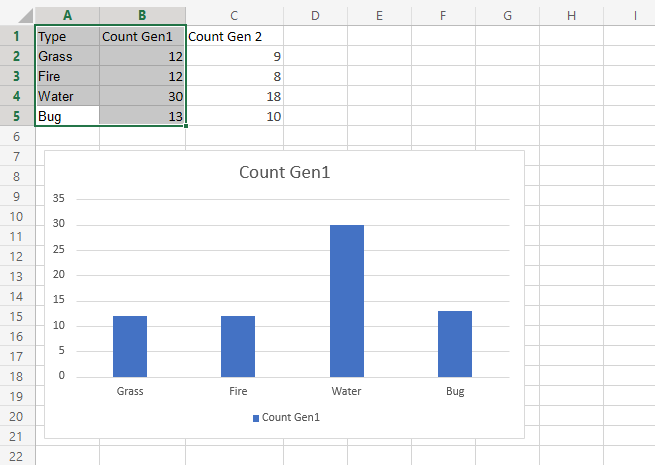
The chart gives a visual overview for the "Grass", "Fire", "Water" and "Bug" type Pokemons in generation 1.
Type "Water" has the most Pokemons in the first generation.
Example With Two Data Columns
Now let's do the same for generation 2 Pokemons and compare the results with the last example.
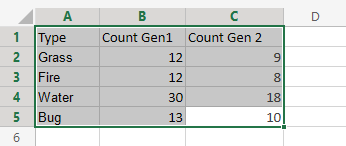
- Select the range
A1:C5
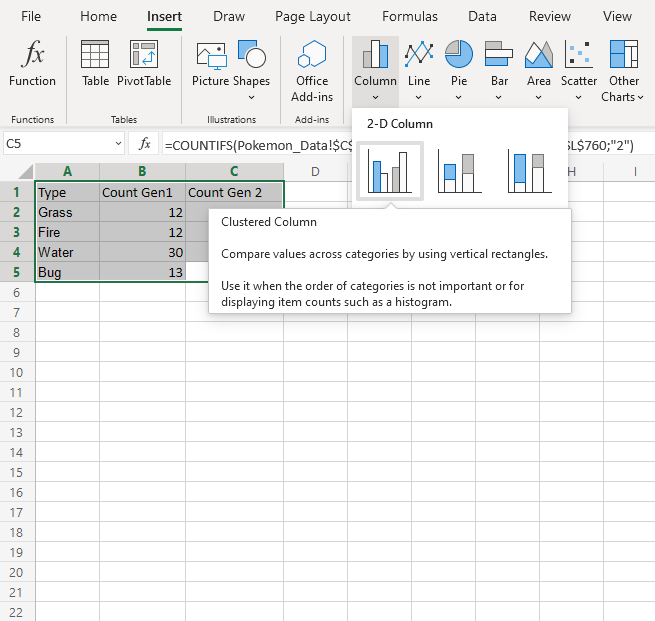
- Click on the insert menu, then click on the column menu () and choose Clustered Column () from the drop-down menu
Note: This menu is accessed by expanding the ribbon.
You should get the chart below:
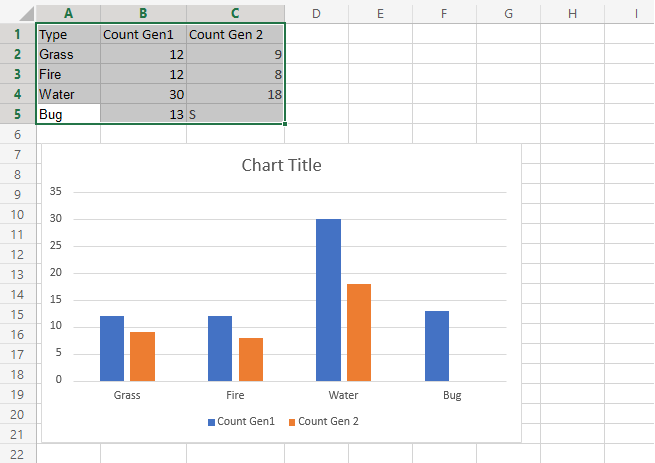
The chart gives a visual overview for the "Grass", "Fire", "Water" and "Bug" type Pokemons in generation 1 and 2.
Generation 1 is shown in blue and generation 2 is shown in orange.
Type "Water" has the most Pokemons in both generations
Also, there are more Pokemons in generation 1 than 2.